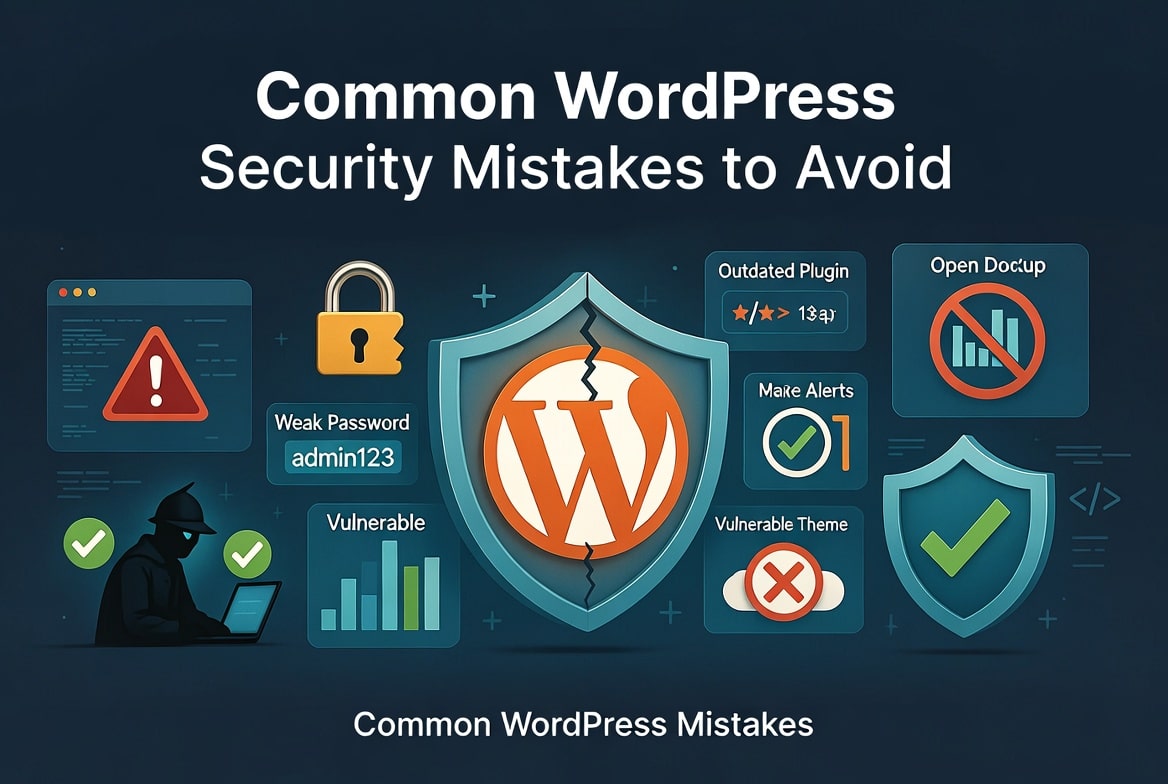
Launching a WordPress site takes less than an hour. You pick a domain, click “install,” choose a clean theme, and you’re live. That simplicity explains why WordPress powers millions of websites, from personal blogs and business websites to online stores and membership platforms. However, many WordPress users focus on design, plugins, and content while overlooking one of the most important parts of running a successful website: security.
Many website owners believe hackers only target large companies or websites with thousands of daily visitors. In reality, attackers rarely choose victims manually. Instead, they rely on automated tools that scan the internet every minute, searching for outdated WordPress installations, vulnerable plugins, weak passwords, exposed login pages, and poorly configured servers. These bots don’t care whether your website belongs to a multinational corporation or a local coffee shop. If they find an easy way in, they will exploit it.
The consequences extend far beyond losing access to your website. A compromised WordPress site can distribute malware, redirect visitors to phishing pages, steal customer information, damage your reputation, and even disappear from Google search results. Recovering from an attack often costs far more than preventing one. Cleaning infected files, restoring backups, rebuilding customer trust, and fixing SEO damage can take days or even weeks.
The encouraging news is that most successful WordPress attacks do not rely on sophisticated hacking techniques. They succeed because website owners make avoidable mistakes during setup or neglect routine maintenance after launching their sites. A few simple security practices can dramatically reduce your risk and make your website a far less attractive target.
In this guide, you’ll learn the biggest WordPress security mistakes website owners make, understand why attackers exploit them, and discover practical steps you can take to build a more secure WordPress website from day one.
1. Using Weak or Reused Passwords Makes Your Website an Easy Target
Your password represents the first line of defense for your WordPress website. Unfortunately, it also remains one of the weakest security controls on many websites because people prioritize convenience over security. Passwords such as admin123, Password1, a company name followed by the current year, or even a pet’s name still appear on countless WordPress installations. Although these passwords seem harmless, automated attack tools can guess thousands of similar combinations within minutes.
Many website owners also reuse the same password across multiple online accounts. For example, someone might use the same password for WordPress, email, Facebook, and an online shopping account because remembering one password feels easier than managing several. This habit creates a serious security risk. If another website suffers a data breach and exposes your login credentials, attackers immediately test those credentials against popular platforms, including WordPress. Security professionals refer to this technique as credential stuffing, and it remains one of the most successful attack methods today.
Imagine that your favorite online store experiences a security breach. Attackers steal customer usernames and passwords before publishing them on underground forums. If you used that same password for your WordPress administrator account, attackers can gain access to your website without exploiting a single vulnerability. They simply log in using valid credentials.
How to avoid this mistake
- Create passwords with at least 16 characters.
- Never reuse passwords across different websites.
- Store passwords in a reputable password manager.
- Enable two-factor authentication (2FA).
- Change administrator passwords immediately if you suspect they have been exposed.
2. Keeping the Default “admin” Username Gives Attackers Half the Answer
Many website owners spend time creating strong passwords but overlook another important login credential: the username. While modern WordPress installations no longer create an admin account by default, many website owners still choose it because it feels simple and familiar. Unfortunately, that decision makes an attacker’s job much easier.
Every successful login requires two pieces of information: a username and a password. If your administrator username is admin, attackers already know half of the login credentials before they begin their attack. Their automated bots no longer need to guess both fields. They only need to test different passwords against a known administrator account.
Brute-force attacks often rely on this assumption. Attackers configure scripts to attempt thousands of password combinations using common usernames such as admin, administrator, root, or even your website name. When your administrator account uses one of these predictable names, you significantly increase your exposure to automated login attempts.
Suppose your website receives several hundred brute-force requests every day. If your administrator username is unique and difficult to guess, many of those attacks fail before password testing even begins. That small change forces attackers to spend additional time identifying valid usernames, and many automated bots simply move on to easier targets.
If your website still uses the admin username, create a new administrator account with a unique name, transfer your content to the new account, verify that everything works correctly, and then remove the old administrator account. This process takes only a few minutes but eliminates one of the most predictable login credentials attackers expect to find.
You should also avoid using your business name, website domain, or personal name as your administrator username. These details often appear publicly throughout your website, making them easy for attackers to discover.
How to Safely Remove the “admin” User:
If your current admin account is literally named “admin,” do not just try to rename it. Follow this sequence:
- Go to Users > Add New in your dashboard.
- Create a brand-new user with a unique name (do not use your domain name or personal name). Set their role to Administrator.
- Log out of WordPress, then log back in using your new admin account.
- Go to Users, hover over the old “admin” user, and click Delete.
- Crucial: When prompted, select “Attribute all content to:” and choose your new username so you don’t delete your blog posts.
3. Ignoring WordPress Updates Leaves Known Vulnerabilities Open
Every WordPress update serves a purpose. Some releases introduce new features, while others improve performance or fix compatibility issues. More importantly, many updates patch security vulnerabilities that attackers actively exploit. When you postpone these updates, you leave publicly documented weaknesses exposed on your website.
Many website owners delay updates because they fear breaking their website. That concern makes sense, especially for business websites that depend on uninterrupted service. However, ignoring updates creates a much greater risk than installing them. Cybercriminals closely monitor WordPress security releases and vulnerability disclosures. Once developers publish a patch, attackers analyze the update to understand the flaw that it fixes. They then build automated exploits designed to locate websites that have not yet installed the latest version.
This process happens much faster than many website owners realize. In some cases, attackers begin scanning for vulnerable websites within hours of a security update becoming available. If your website runs an outdated version of WordPress, a vulnerable plugin, or an unsupported theme, you effectively advertise an opportunity for attackers.
How to avoid this mistake
- Update WordPress core as soon as practical.
- Keep plugins and themes current.
- Remove abandoned plugins that no longer receive updates.
- Update your PHP version through your hosting provider.
- Test major updates on a staging environment before deploying them to your live website.
4. Installing Too Many Plugins Increases Your Website’s Attack Surface
One of WordPress’s greatest strengths is its plugin ecosystem. Whether you want to improve SEO, build contact forms, create an online store, optimize performance, or add advanced security features, you can usually find a plugin that solves the problem. That flexibility makes WordPress incredibly powerful, but it also encourages many website owners to install far more plugins than they actually need.
A common misconception suggests that the number of plugins alone determines whether a website is secure. That isn’t entirely true. A website running 35 well-coded, regularly maintained plugins can remain more secure than another website running only five outdated or poorly developed plugins. The real issue lies in quality, maintenance, and necessity rather than quantity.
Every plugin introduces additional code into your website. Each new feature creates another component that developers must maintain and secure. If a developer abandons a plugin or fails to patch newly discovered vulnerabilities, attackers can exploit those weaknesses to gain unauthorized access. Some vulnerabilities allow attackers to upload malicious files, execute arbitrary code, create administrator accounts, or steal sensitive information without ever logging in.
Many website owners also install multiple plugins that perform the same task. For example, a website might have three caching plugins, two image optimization plugins, and several inactive plugins left over from testing different solutions. Although inactive plugins don’t run on your website, they still exist on the server. If they contain known vulnerabilities, attackers may still target them.
Imagine someone builds a new business website and installs nearly every plugin recommended in YouTube tutorials. Six months later, several of those plugins no longer receive updates, while others remain inactive after the owner switched to different alternatives. Without realizing it, the website now contains multiple unnecessary security risks that provide no real value.
Quality always matters more than quantity.
How to avoid this mistake
- Install only plugins that provide clear value.
- Remove inactive and unused plugins.
- Choose plugins with active development and frequent updates.
- Download plugins only from trusted developers or the official WordPress Plugin Directory.
- Review your installed plugins every few months and remove anything you no longer need.
5. Downloading Nulled Themes and Plugins Creates Serious Security Risks
Premium WordPress themes and plugins often save time by providing advanced features, professional support, and regular security updates. Unfortunately, some WordPress website owners attempt to avoid licensing costs by downloading “nulled” versions from unofficial websites.
At first glance, this decision may appear to save money. In reality, it often becomes one of the most expensive mistakes a website owner can make.
A nulled plugin is a modified version of commercial software that someone has removed licensing restrictions from before redistributing it without permission. Because these files come from untrusted sources, you have no reliable way to verify what changes someone made before uploading them online. While some copies simply bypass license checks, many contain hidden malware, spam links, backdoors, cryptocurrency miners, malicious redirects, or code that quietly creates administrator accounts for attackers.
These malicious modifications often remain invisible for weeks or months. Your website may continue functioning normally while attackers collect information, manipulate search engine rankings, inject advertisements, or use your server to distribute malware to visitors. By the time you notice unusual behavior, significant damage may have already occurred.
Many website owners also lose access to security updates because nulled software cannot connect to official licensing servers. As developers release vulnerability patches, your website remains exposed while attackers actively search for outdated installations.
The cost of purchasing a legitimate plugin rarely compares to the expense of cleaning an infected website, restoring lost data, recovering search rankings, or rebuilding customer trust after a compromise.
How to avoid this mistake
- Never download nulled WordPress themes or plugins.
- Buy premium software directly from the original developer.
- Use reputable free plugins whenever possible.
- Delete any nulled software currently installed on your website.
- Keep licensed plugins updated to receive the latest security patches.
Saving a few dollars today should never put your entire website at risk tomorrow.
6. Skipping Two-Factor Authentication Leaves Administrator Accounts Vulnerable
Strong passwords provide excellent protection, but they cannot defend against every attack. Cybercriminals steal passwords through phishing emails, malware infections, browser vulnerabilities, leaked databases, and credential stuffing attacks. Once attackers obtain valid credentials, they can log in just like legitimate users unless another security layer blocks them.
Two-factor authentication, commonly known as 2FA, adds that extra layer of protection. Instead of relying solely on your password, WordPress asks for a second verification factor, such as a temporary code generated by an authentication application on your smartphone. Even if someone discovers your password, they cannot access your administrator account without completing the second verification step.
Many website owners avoid enabling 2FA because they assume it will complicate the login process. In practice, modern authentication apps generate verification codes almost instantly, and the additional login step usually takes less than thirty seconds. That small investment of time provides substantial protection against one of the most common attack methods targeting WordPress websites.
Consider a scenario where an attacker successfully steals your administrator password through a phishing email. Without two-factor authentication, they can immediately access your dashboard, install malicious plugins, create additional administrator accounts, modify your website, or lock you out completely. With 2FA enabled, the stolen password becomes almost useless because the attacker cannot generate the required verification code stored on your mobile device.
Most reputable WordPress security plugins such as Wordfence , now include two-factor authentication as a standard feature. Setting it up usually requires scanning a QR code with an authentication application and saving backup recovery codes in a secure location.
Every administrator account should use two-factor authentication. If multiple people manage your website, encourage editors, shop managers, and other privileged users to enable it as well.
How to avoid this mistake
- Enable two-factor authentication for every administrator account.
- Use an authentication app instead of SMS whenever possible.
- Store recovery codes securely.
- Require privileged users to enable 2FA before accessing the dashboard.
- Review administrator accounts regularly to ensure security settings remain active.
7. Leaving Your WordPress Login Page Unprotected Invites Brute-Force Attacks
Every WordPress website includes a login page. By default, attackers know exactly where to find it because most installations use familiar addresses such as /wp-login.php or /wp-admin. These pages receive constant attention from automated bots searching for websites with weak login security.
Brute-force attacks don’t rely on sophisticated exploits. Instead, attackers repeatedly attempt different username and password combinations until they discover valid credentials. Modern attack tools can test thousands of login attempts across hundreds of websites simultaneously, making unprotected login pages attractive targets.
Even when attackers fail to gain access, continuous login attempts consume server resources and slow website performance. If several attack campaigns occur simultaneously, legitimate visitors may experience slower page loading times or temporary service interruptions.
Fortunately, protecting your login page doesn’t require advanced technical knowledge. You can dramatically reduce brute-force attacks by limiting failed login attempts, enabling CAPTCHA verification, blocking suspicious IP addresses, implementing two-factor authentication, and deploying a Web Application Firewall (WAF). These security measures force attackers to overcome multiple obstacles instead of relying on unlimited password guesses.
How to avoid this mistake
- Install a security plugin (like Wordfence or Solid Security) to limit login attempts. If an IP fails to log in 3 times, lock them out for 2 hours.
- Use a plugin like WPS Hide Login to move your login page to a custom URL (e.g.,
[yourdomain.com/my_secret_entrance](https://yourdomain.com/my_secret_entrance)). - Enable CAPTCHA on the login page.
- Use two-factor authentication.
- Deploy a Web Application Firewall (WAF).
- Monitor login activity for unusual behavior.
- Block malicious IP addresses whenever possible.
8. Failing to Back Up Your Website Can Turn a Small Problem Into a Major Disaster
Many website owners assume backups are only necessary after a website gets hacked. Others believe their hosting provider automatically handles everything, so they never think about creating their own backup strategy. Unfortunately, both assumptions can leave you without a reliable way to recover your website when something goes wrong.
Cyberattacks certainly make backups essential, but they are not the only reason websites fail. A faulty plugin update, accidental file deletion, database corruption, server failure, or human error can break your website just as easily. When you don’t have a recent backup, even a minor mistake can require hours or days of rebuilding pages, restoring images, recreating customer orders, or rewriting blog posts.
Imagine updating a plugin that appears trustworthy. The update conflicts with another plugin and crashes your website. At the same time, you discover that your hosting provider only keeps backups for seven days, and your latest changes fall outside that retention period. Instead of restoring your website in a few minutes, you now face the frustrating task of rebuilding everything manually.
Always follow the 3-2-1 Backup Strategy:
- 1 copy must be stored completely off-site (e.g., Google Drive, Dropbox, or Amazon S3 via a plugin like UpdraftPlus).
- Keep 3 copies of your data.
- Across 2 different mediums.
You should also remember that creating backups is only half the job. A backup that cannot be restored has little value. Test your backups periodically by restoring them to a staging environment. This simple practice confirms that your backup files remain complete and usable before you actually need them during an emergency.
Many WordPress backup plugins such as UpdraftPlus, BackWPup, and Jetpack Backup automate the entire process. Schedule daily or weekly backups depending on how often your website changes, store copies securely outside your hosting account, and monitor the process to ensure every backup completes successfully.
Backups do not prevent cyberattacks. They simply make recovery much faster when something unexpected happens.
How to avoid this mistake
- Schedule automatic backups.
- Store backups outside your hosting account.
- Keep multiple backup copies.
- Test backup restoration regularly.
- Create a fresh backup before updating WordPress, plugins, or themes.
9. Giving Every User Administrator Access Creates Unnecessary Risk
WordPress includes a powerful user role system for a reason. Different users need different levels of access to manage a website effectively. Unfortunately, many website owners ignore these roles and assign administrator privileges to everyone who contributes to the site because it seems easier than managing permissions.
This approach creates unnecessary security risks.
An administrator can install plugins, modify themes, change security settings, create new administrator accounts, delete content, and even remove the website entirely. While those permissions make sense for the website owner, they rarely make sense for freelance writers, editors, virtual assistants, customer support staff, or marketing teams.
Suppose you hire a freelance writer to publish blog posts for your business. That person only needs permission to write and edit articles. If you grant administrator privileges instead, they automatically gain access to your plugins, security settings, customer information, and website configuration. Even if the writer has no malicious intent, a compromised account or accidental mistake could expose your website to serious problems.
Following the principle of least privilege significantly improves WordPress security. This security principle recommends giving users only the permissions they need to perform their responsibilities and nothing more. By limiting access, you reduce the potential damage if an account becomes compromised.
WordPress already provides several built-in user roles designed for common responsibilities:
- Administrator – Complete control over the website.
- Editor – Manages and publishes content.
- Author – Writes and publishes their own posts.
- Contributor – Writes content but cannot publish it.
- Subscriber – Maintains a personal profile with minimal permissions.
Review user accounts regularly and remove anyone who no longer requires access. Businesses often forget to disable accounts belonging to former employees or contractors, leaving unnecessary entry points available long after projects have ended.
Every unnecessary administrator account increases your attack surface. Reducing privileged accounts strengthens your website without installing a single additional security plugin.
How to avoid this mistake
- Assign the lowest permission level required.
- Limit administrator accounts to trusted users.
- Remove inactive users promptly.
- Review user roles regularly.
- Disable accounts belonging to former employees and contractors.
10. Choosing Cheap or Insecure Hosting Weakens Every Other Security Measure
Many website owners compare hosting providers based almost entirely on price. While saving money matters, choosing the cheapest hosting plan without evaluating its security features often creates problems that no WordPress plugin can fully solve.
Your hosting provider forms the foundation of your website’s security. Even if you install excellent security plugins, create strong passwords, and follow every best practice, insecure hosting can still expose your website to unnecessary risks.
Low-quality hosting providers sometimes delay server updates, use outdated PHP versions, oversell server resources, or place hundreds of unrelated websites on the same poorly isolated server. If one vulnerable website becomes compromised, attackers may attempt to move laterally to neighboring websites depending on the hosting environment.
Reliable hosting providers invest heavily in server security before WordPress even loads. They continuously monitor suspicious activity, apply operating system updates, isolate customer accounts, detect malware, provide Web Application Firewalls, and respond quickly when new vulnerabilities emerge. These protective measures significantly reduce the likelihood of successful attacks.
When evaluating a hosting provider, don’t focus solely on storage space or bandwidth. Instead, ask security-related questions. Does the provider offer automatic backups? Do they include free SSL certificates? How quickly do they apply security patches? Can they detect malware automatically? Do they provide staging environments for safe testing? These features contribute directly to your website’s overall security.
Many managed WordPress hosting providers such as wordpress.com, Kinsta also perform proactive security monitoring around the clock. They identify unusual activity before it escalates into a major incident, giving website owners valuable time to respond.
Your hosting provider cannot eliminate every security risk, but it should strengthen your defenses rather than introduce new vulnerabilities.
How to avoid this mistake
- Choose hosting providers with strong security reputations.
- Look for automatic backups and malware scanning.
- Ensure the provider keeps server software updated.
- Use hosting that includes free SSL certificates and firewall protection.
- Prioritize security and reliability over the lowest monthly price.
11. Ignoring Malware Scans and Security Monitoring Delays Detection
Many website owners assume everything works perfectly because the homepage loads normally. Unfortunately, cybercriminals often design malware to remain hidden for as long as possible. They quietly inject spam pages, create hidden administrator accounts, modify website files, steal sensitive information, or redirect only certain visitors to malicious websites. Weeks or even months can pass before anyone notices unusual behavior.
By the time customers report suspicious redirects or Google flags your website for distributing malware, attackers may have already achieved their objective.
Continuous security monitoring helps you detect problems much earlier.
A good WordPress security solution doesn’t simply block attacks. It also watches for unexpected changes across your website. File integrity monitoring alerts you when attackers modify important files. Login monitoring identifies unusual authentication attempts. Malware scanners search for suspicious code, while activity logs record important administrative actions that help you investigate incidents quickly.
Imagine receiving an alert that a new administrator account appeared at three o’clock in the morning. You immediately recognize that nobody on your team created it, remove the account, investigate recent login activity, and restore affected files before significant damage occurs. Without monitoring, that unauthorized account might remain active for weeks.
Security monitoring transforms cybersecurity from a reactive process into a proactive one. Instead of waiting for obvious symptoms, you identify unusual behavior while attackers still have limited access.
You don’t need enterprise-level security software to benefit from monitoring. Many reputable WordPress security plugins provide malware scanning, activity logging, login alerts, and file integrity monitoring suitable for small businesses and personal websites.
Early detection almost always reduces recovery costs.
How to avoid this mistake
- Schedule regular malware scans.
- Enable file integrity monitoring.
- Review login activity frequently.
- Configure email alerts for suspicious events.
- Investigate unusual administrator accounts immediately.
12. Leaving File Editing Enabled Makes It Easier for Attackers to Modify Your Website
WordPress includes a built-in file editor that allows administrators to modify theme and plugin files directly from the dashboard. At first glance, this feature appears convenient. You can quickly adjust a template or add a few lines of code without logging into your hosting account.
However, convenience often comes at the expense of security.
If an attacker gains administrator access to your website, the built-in editor gives them an immediate way to inject malicious code into your themes or plugins. They don’t need FTP access or control panel credentials because WordPress already provides everything they need. Within minutes, they can install backdoors, create hidden administrator accounts, redirect visitors to malicious websites, or execute arbitrary code that persists even after you change your password.
The risk extends beyond cyberattacks. Administrators sometimes make accidental changes while editing files directly in the dashboard. A single syntax error can trigger the infamous “white screen of death,” making your website inaccessible until you manually repair the affected file.
Disabling the built-in file editor removes an unnecessary attack vector without affecting your ability to customize WordPress. Developers can still edit files securely through SFTP, SSH, version control systems such as Git, or a staging environment where changes undergo proper testing before reaching the live website.
This small configuration change follows an important cybersecurity principle: reduce opportunities for attackers wherever possible. Every feature that you don’t actively use represents another potential entry point. Eliminating unnecessary functionality strengthens your website with very little effort.
You can disable the file editor by adding a simple configuration directive to your wp-config.php file. Many managed WordPress hosting providers and security plugins also provide this option through their dashboards, making implementation straightforward even for website owners.
How to avoid this mistake
- Disable the WordPress theme and plugin editor.
- Edit website files through SFTP or SSH instead.
- Test code changes on a staging website before deployment.
- Use version control for larger websites and development projects.
- Restrict file modification privileges to trusted administrators.
13. Not Using a Web Application Firewall (WAF) Leaves Your Website Exposed
Many website owners think of a firewall as something that protects computers or office networks. In reality, a Web Application Firewall (WAF) plays an equally important role in protecting WordPress websites from internet-based attacks.
A WAF sits between your visitors and your website. Instead of allowing every request to reach your server, it examines incoming traffic and blocks suspicious activity before attackers can interact with WordPress. This proactive filtering helps stop many common attacks, including SQL injection attempts, cross-site scripting (XSS), malicious bots, brute-force login attacks, and requests targeting known plugin vulnerabilities.
Without a firewall, every malicious request reaches your server first. WordPress, your plugins, and your hosting environment must process those requests before determining whether they are harmful. During large-scale attack campaigns, this unnecessary traffic consumes server resources and may slow your website or even cause temporary outages.
Consider a website that receives thousands of automated requests every hour from bots attempting to exploit a recently disclosed plugin vulnerability. A properly configured WAF recognizes those malicious requests and blocks them before they reach WordPress. Your website continues serving legitimate visitors while the firewall silently filters attack traffic in the background.
Many managed WordPress hosting providers include firewall protection as part of their security services. Cloud-based solutions such as Cloudflare also provide Web Application Firewall capabilities that protect websites before requests even reach the hosting server.
Although a firewall cannot replace good security practices such as updates and strong passwords, it significantly reduces your exposure to automated attacks. Think of it as another security layer that complements everything else you do to protect your website.
Cybersecurity works best when multiple defenses operate together rather than relying on a single solution.
How to avoid this mistake
- Enable a Web Application Firewall for your website.
- Keep firewall rules updated.
- Combine WAF protection with strong authentication and regular updates.
- Monitor blocked requests to identify recurring attack patterns.
- Choose a hosting provider or security service that offers managed firewall protection.
14. Treating WordPress Security as a One-Time Task Instead of an Ongoing Process
Many website owners approach website security as a checklist they complete immediately after launching WordPress. They install a security plugin, create a strong password, configure backups, and then assume their work is finished.
Unfortunately, cybersecurity doesn’t work that way.
New vulnerabilities appear regularly. Plugin developers release updates, cybercriminals discover new attack techniques, hosting environments evolve, and your website itself changes over time. Every new plugin, user account, feature, or integration creates additional opportunities that require ongoing attention.
Think about how your website grows during its first year. You publish new content, install marketing tools, connect payment gateways, hire freelancers, create user accounts, and experiment with new plugins. Each change introduces potential security considerations that didn’t exist when you first launched the website.
Organizations with mature cybersecurity programs understand this reality. They don’t secure systems once and walk away. Instead, they monitor activity, review configurations, update software, evaluate risks, and improve defenses continuously. WordPress website owners should adopt the same mindset, regardless of whether they manage a personal blog or a growing eCommerce business.
Create a monthly security routine. Review installed plugins, remove anything you no longer use, verify that automatic backups continue working, update WordPress core, inspect administrator accounts, scan for malware, and check activity logs for unusual behavior. These routine tasks require relatively little time but dramatically reduce the likelihood that small security issues develop into major incidents.
Security also involves staying informed. Subscribe to WordPress security blogs, monitor vulnerability announcements for plugins you use, and pay attention to recommendations from your hosting provider. The more quickly you learn about emerging threats, the faster you can respond.
The safest WordPress websites rarely rely on one exceptional security feature. Instead, they benefit from consistent maintenance, regular updates, and disciplined operational habits maintained over time.
How to avoid this mistake
- Perform monthly security reviews.
- Keep WordPress, themes, and plugins updated.
- Remove software you no longer need.
- Monitor WordPress security news and vulnerability announcements.
- Treat security as part of your regular website maintenance schedule.
A Quick WordPress Security Checklist
Before you consider your website secure, review the following checklist. If you can confidently answer “yes” to each item, you’ve already addressed many of the most common WordPress security mistakes that website owners make.
- Use strong, unique passwords for every account.
- Replace predictable administrator usernames.
- Enable two-factor authentication.
- Keep WordPress core, themes, plugins, and PHP updated.
- Install plugins only from trusted developers.
- Never use nulled themes or plugins.
- Schedule automatic off-site backups.
- Assign user roles based on the principle of least privilege.
- Choose a secure WordPress hosting provider.
- Scan your website regularly for malware.
- Disable the built-in file editor.
- Protect your website with a Web Application Firewall.
- Monitor login activity and security alerts.
- Review your website’s security every month.
Final Thoughts
WordPress remains one of the most secure content management systems available when website owners maintain it properly. The platform benefits from an active development community, frequent security updates, and thousands of trusted plugins that help strengthen website defenses. Yet attackers continue to compromise WordPress websites every day because many owners overlook basic security practices rather than because WordPress itself is inherently insecure.
The encouraging reality is that you don’t need an advanced cybersecurity background to build a secure WordPress website. Most successful attacks exploit preventable weaknesses such as outdated software, weak passwords, excessive administrator privileges, abandoned plugins, and poor maintenance habits. Addressing these issues consistently eliminates many of the opportunities that automated attack tools search for every day.
Start with the fundamentals. Strengthen your login credentials, enable two-factor authentication, install updates promptly, choose reputable hosting, create reliable backups, and monitor your website for suspicious activity. As your website grows, continue reviewing your security posture and adapting your defenses to match new risks.
Security is not a product that you install once and forget. It is an ongoing commitment to protecting your website, your visitors, your business, and the reputation you’ve worked hard to build. Every proactive security improvement you make today reduces the chances that you’ll face a costly website compromise tomorrow.
If you’re serious about building a secure WordPress website, make security part of your regular maintenance routine—not just something you think about after an attack. Consistent attention to the basics remains the most effective defense against the vast majority of WordPress security threats.
Ready to secure your software?
Read more on
Leave a comment below or use our contact page to reach out. I’d love to hear from you!



Leave a Reply