
Attackers carry out brute force attacks against WordPress websites every single day. Many bots can test thousands of username and password combinations every minute, and they never get tired. One weak password or one missing security setting can give an attacker full control of your site.
I have cleaned up many hacked WordPress websites over the years. Most owners thought their sites were too small to attract attention. They learned the hard way that bots do not care whether you run a personal blog, an online store, or a business website. Bots scan millions of sites and attack any login page they can find.
Here is the good news. You do not need advanced technical skills to stop most brute force attacks. A few smart security changes can block the majority of automated login attempts before they become a real problem.
What Is a WordPress Brute Force Attack?
A WordPress brute force attack happens when a bot keeps guessing your login details until it finds the right password.
Think about someone trying every key on a huge key ring until one finally opens your front door. That is exactly how a brute force attack works, except a computer can test thousands of passwords every minute.
Most attacks target the default WordPress login page at wp login php. Since every fresh WordPress installation uses the same login address, attackers know exactly where to send their requests.
This becomes even more dangerous when attackers use credential stuffing WordPress attacks. Instead of guessing random passwords, they use huge lists of usernames and passwords stolen from other websites. If you reused the same password on your WordPress site, they may log in within seconds.
Think about it this way. If someone steals the key to your house and you also use that same key for your office, your storage unit, and your mailbox, they can open every door. Password reuse creates the same risk online.
Security researchers at Wordfence and Patchstack regularly report millions of automated login attempts across WordPress websites. Their research shows that attackers rely on volume, not skill. They know that even a tiny success rate gives them access to thousands of websites.
If you want to improve your overall WordPress login security, stopping brute force attacks should sit at the top of your checklist.
Check out WordPress Security Checklist
How to Know if Your Site Is Under a Brute Force Attack
Most brute force attacks leave clear warning signs if you know where to look.
Here are the signs you can check right now.
Your website suddenly loads much slower than usual. Thousands of login requests force your server to do extra work, even if attackers never log in.
Your security plugin shows hundreds or even thousands of failed login attempts from different locations.
Your hosting company sends an email about unusual traffic, high server use, or suspicious login activity.
You suddenly cannot log into your own admin account because your security plugin locked the account after repeated failed attempts.
Your server logs fill with requests to the WordPress login page or XML RPC endpoint.
Let us be honest. Most people never look at their login logs until something breaks. Spending two minutes checking them every week can help you spot attacks before they cause damage.
Step by Step Guide to Stop WordPress Brute Force Attacks
You can stop most automated attacks with a handful of simple security improvements.
1. Install a Plugin That Limits Login Attempts
Start with limit login attempts WordPress protection.
Install a trusted plugin such as Limit Login Attempts Reloaded. These plugins count failed login attempts and temporarily block anyone who keeps guessing passwords.
Bots depend on unlimited guesses. Once the plugin blocks repeated failures, most automated attacks stop almost immediately.
This single step takes only a few minutes and provides one of the biggest security improvements you can make.
2. Enable Two Factor Authentication on Every Admin Account
Two factor authentication WordPress adds another layer of protection.
After you enter your password, WordPress asks for a second code from your phone or authentication app. Even if an attacker steals your password, they still cannot access your account without that second code.
This simple feature blocks the vast majority of automated login attacks because bots rarely have access to both pieces of information.
If multiple people manage your website, require every administrator to enable two factor authentication. One weak account can put the entire website at risk.
Imagine handing someone your bank password but keeping your phone in your pocket. They still cannot log into your account. Two factor authentication works the same way.
3. Change the Default Login URL
Every WordPress installation starts with the same login address.
Attackers know that address before they even visit your website.
Install a plugin such as WPS Hide Login and change the login page to something unique. The plugin lets you create a custom login address without changing WordPress core files.
This step removes your website from many automated bot scans because bots often search only for the default login page.
Changing the login address alone will not stop every attack, but it removes a common target and reduces unnecessary login requests.
Read More
Common WordPress Security Mistakes WordPress Site Owners Should Avoid
4. Block XML RPC if You Do Not Use It
WordPress brute force attack prevention also means closing doors that attackers often use.
XML RPC allows remote communication with WordPress. Most website owners never need it.
Attackers like XML RPC because they can send many password guesses in a single request. That makes attacks faster and harder to notice.
If you do not rely on XML RPC for a specific service, disable it with your security plugin or your hosting control panel.
Many security plugins include this option with a single click.
Here is the thing. Every unused feature creates another possible entry point. If you never use XML RPC, turning it off removes another opportunity for attackers.
5. Use a Strong and Unique Password for Every Account
WordPress password security starts with one simple rule. Never reuse passwords.
Credential stuffing works because people use the same password on several websites. If attackers steal your password from another service, they will try it on your WordPress login page.
Create a long password with a mix of letters, numbers, and symbols. Better yet, let a password manager create one for you. You only need to remember the password for your password manager.
If your website has multiple users, ask everyone to update their passwords. One weak account can give an attacker access to your entire site.
Think about it this way. You would not use the same key for your house, your office, and your car. Your online accounts deserve the same level of protection.
6. Set Up a Web Application Firewall
A WordPress firewall plugin stops many attacks before they ever reach your website.
A web application firewall checks incoming traffic and blocks requests that match known attack patterns. Instead of forcing your server to process every login request, the firewall filters out malicious traffic first.
Cloudflare provides strong protection at the network level. Wordfence adds firewall protection inside WordPress and gives you detailed reports about blocked attacks.
Many website owners notice lower server load after they enable a firewall because the firewall blocks thousands of unwanted requests every day.
This is where it gets serious. If your site receives constant bot traffic, a firewall can make the difference between a stable website and one that struggles to stay online.
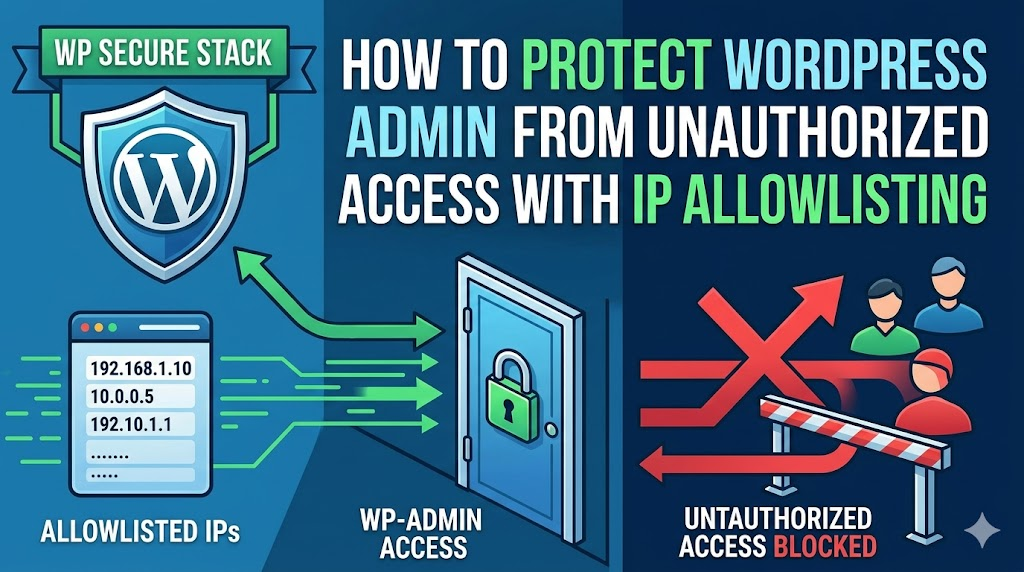
7. Limit Access to the WordPress Admin Area by IP Address
WordPress admin protection becomes much stronger if you always work from the same location.
You can limit access to the wp admin area so that only your trusted IP address can open it. Everyone else receives an access denied message before WordPress even loads.
You can add a few simple lines to your .htaccess file if your server uses Apache.
<Directory “/wp-admin”>
Order Deny,Allow
Deny from all
Allow from YOUR.IP.ADDRESS
</Directory>
Replace YOUR.IP.ADDRESS with your own public IP address.
Only use this method if your IP address stays the same most of the time. If your internet provider changes your IP often, you may lock yourself out of your own website.
What Is WordPress Security and Why It Matters
8. Monitor Your Login Logs Regularly
Stop bot attacks WordPress before they become a bigger problem by checking your login activity.
Most security plugins record every successful login, failed login, blocked IP address, and suspicious request.
Spend a few minutes each week reviewing these logs. Look for repeated login attempts from the same country, repeated attacks against the same username, or unusual login times.
Small patterns often reveal bigger problems.
I once worked with a client who noticed hundreds of failed logins every night around the same time. They added two factor authentication and a firewall that same day. The attacks continued, but the bots never logged in successfully again.
A few minutes of monitoring saved them from what could have become a costly cleanup.
What to Do if Attackers Already Breached Your Site
Stay calm and act quickly.
Many hacked WordPress websites recover completely when owners respond quickly.
Follow this checklist.
- Change every password, including WordPress accounts, hosting accounts, your database, and FTP access.
- Force WordPress to log out every user by revoking active sessions.
- Scan your website for malware with Wordfence or MalCare.
- Restore a clean backup if malware changed important files.
- Contact your hosting provider and let them know what happened.
- Update WordPress, your themes, and every plugin to the latest version.
- Review administrator accounts and remove any account you do not recognize.
Do not assume the problem disappears after changing one password. Attackers often leave hidden administrator accounts or malicious files behind. A complete security review gives you much better peace of mind.
Tools and Plugins Worth Using
These tools provide excellent protection without making WordPress difficult to manage.
- Wordfence Blocks malicious traffic, scans for malware, monitors login attempts, and includes a powerful firewall.
- Limit Login Attempts Reloaded: Limits failed login attempts and blocks automated password guessing.
- WPS Hide Login: Changes the default login URL so automated bots have a harder time finding your login page.
- Cloudflare: Filters malicious traffic before it reaches your website and helps reduce server load during attacks.
- Solid Security: Adds login protection, file monitoring, two factor authentication, and many other security features in one plugin.
Choose the tools that match your needs. You do not need every security plugin on the market. A few trusted tools that you configure correctly will protect your website much better than a long list of plugins that you never manage.
Frequently Asked Questions
How do I stop brute force attacks on my WordPress website?
Start by limiting login attempts, enabling two factor authentication, using strong passwords, changing the default login URL, and installing a firewall. These steps block most automated attacks before attackers have a chance to guess your password.
Does changing the WordPress login URL improve security?
Yes. Changing the default login address removes your website from many automated scans that only search for the standard WordPress login page. It should support other security measures instead of replacing them.
Can a strong password stop credential stuffing attacks?
A strong password helps, but a unique password matters even more. Credential stuffing succeeds because people reuse passwords across different websites. A unique password prevents attackers from using stolen credentials from another service.
Which plugin works best for WordPress brute force attack prevention?
Many website owners trust Wordfence and Limit Login Attempts Reloaded because they block repeated login attempts and provide useful security reports. The best choice depends on your website, your budget, and the level of protection you need.
Should I disable XML RPC?
If you do not use XML RPC for remote publishing or another specific feature, you should disable it. Attackers often target this endpoint because it allows them to send many login attempts with fewer requests.
Take Action Before Bots Find Your Site
Brute force attacks rarely give you much warning. Bots scan the internet around the clock, and they do not care whether your website receives ten visitors a day or ten thousand.
The good news is that you can stop most of these attacks with a few practical changes. Limit login attempts, enable two factor authentication, use unique passwords, install a firewall, and check your login activity regularly. Those simple steps will protect your website far better than hoping attackers choose another target.
Do not wait until someone breaks into your site. Open your WordPress dashboard today and complete the first security step. Your future self will thank you.




Leave a Reply