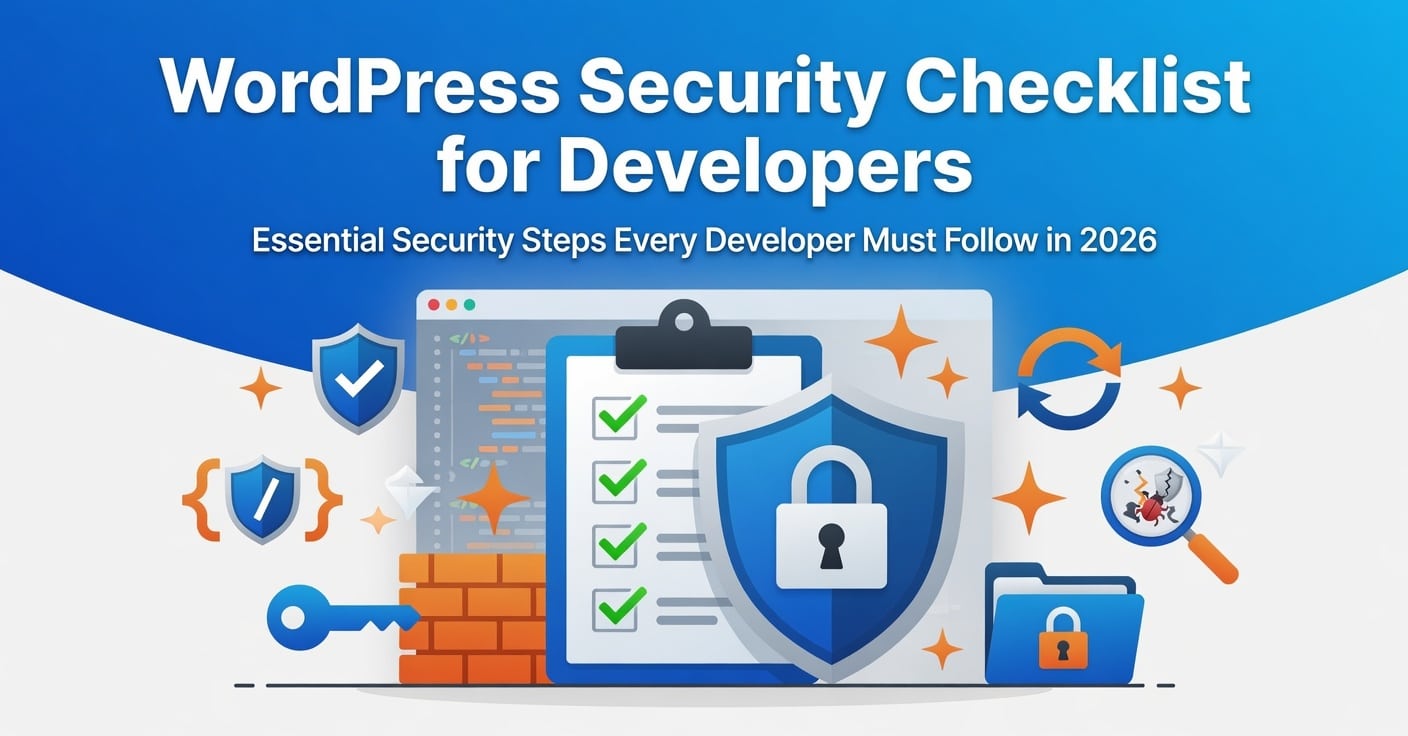
WordPress powers over 43% of the web — which makes it the single most targeted CMS on the planet. If you’re building or maintaining WordPress sites professionally, security isn’t optional. This checklist covers every layer of a hardened WordPress deployment, from server configuration to post-launch monitoring.
What this checklist covers
- Server & Hosting
- WordPress Hardening
- Authentication
- Plugin & Theme Safety
- Database Security
- SSL & HTTPS
- Backups & Recovery
- Monitoring
- Server and hosting configuration
Security starts before WordPress is even installed. Choosing a managed host with server-level hardening saves significant remediation time down the road.
Security starts before WordPress is even installed. Choosing a managed host with server-level hardening saves significant remediation time down the road.
Use PHP 8.2 or higher – Older PHP versions are unsupported and contain known vulnerabilities. Always run the latest stable release.
Enable a web application firewall (WAF) – Cloudflare, Sucuri, or a server-level WAF blocks malicious traffic before it hits your application.
Disable directory listing – Add Options -Indexes to your .htaccess to prevent exposing file structure to crawlers.
Restrict file permissions- Directories should be 755, files 644, and wp-config.php set to 440 or 400.
- WordPress core hardening
These configurations directly reduce the attack surface of your WordPress installation and are often overlooked on developer-built sites.
Keep WordPress core up to date – Enable auto-updates for minor releases. Major updates should go through a staging environment first.
Disable the file editor in wp-admin – Add define(‘DISALLOW_FILE_EDIT’, true); to wp-config.php to prevent in-dashboard code edits.
Hide the WordPress version number – Remove the generator meta tag from your theme’s functions.php to avoid revealing your version to scanners.
Protect wp-config.php – Move it one directory above the webroot or use .htaccess rules to block direct access.
Disable XML-RPC if unused – XML-RPC is a common brute-force vector. Disable it unless you have a specific use case requiring it.
- Authentication and access control
Credential-based attacks account for the majority of WordPress compromises. Hardening authentication is your highest-ROI security investment.
Enforce strong passwords for all users – Use a plugin like WP Password Policy Manager to enforce minimum complexity requirements site-wide.
Implement two-factor authentication (2FA) – Require 2FA for all admin accounts. Plugins like WP 2FA or Google Authenticator make this straightforward.
Change the default admin username – Never use “admin” as a username. Create a custom admin account and delete the default one.
Limit login attempts – Use Limit Login Attempts Reloaded or your firewall plugin to lock out IPs after repeated failures.
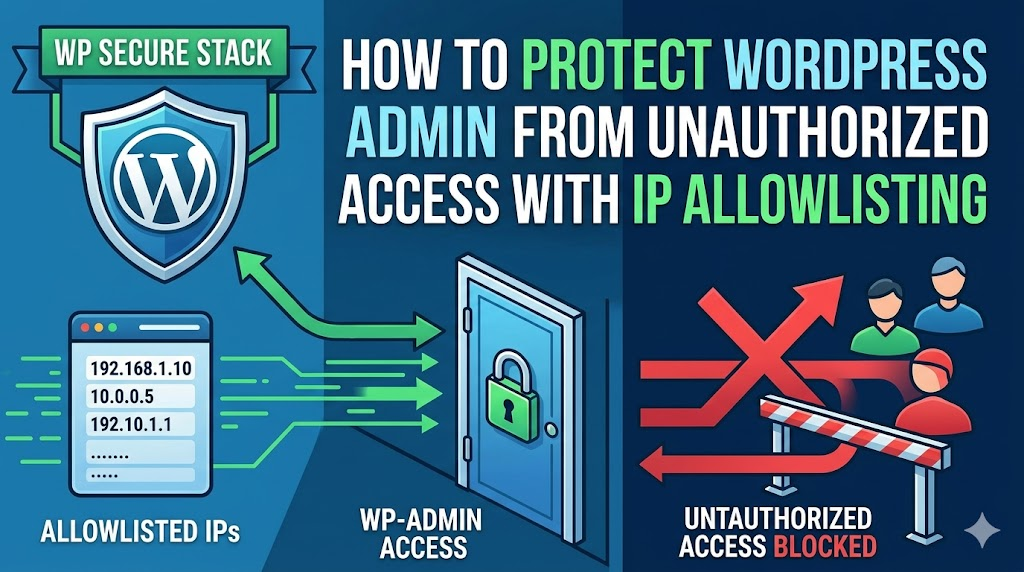
Use IP allowlisting for wp-admin – Restrict access to /wp-admin to known IP ranges wherever your workflow allows it.
- Plugins and themes
Third-party code is the leading cause of WordPress vulnerabilities. Treat every plugin as a potential attack vector.
Monitor for known plugin vulnerabilities- Use WPScan or Patchstack to get alerts when installed plugins receive CVE disclosures.
Audit installed plugins regularly – Delete anything unused. Inactive plugins still present an attack surface if they contain vulnerabilities.
Only install plugins from reputable sources – Stick to the official WordPress repository or well-known premium vendors. Nulled plugins are a common malware vector.
- Database security
By default, WordPress uses the wp_ prefix for all database tables. Because this is common knowledge, hackers often use it to simplify SQL injection attacks. To harden your site, you should replace this default with a unique, randomized string (such as xk72_).
Use a dedicated database user with minimal privilegesThe WordPress DB user should only have SELECT, INSERT, UPDATE, DELETE — never GRANT or DROP.
- SSL, HTTPS, and security headers
Force HTTPS site-wide – Redirect all HTTP traffic to HTTPS and set FORCE_SSL_ADMIN to true in wp-config.php.
Implement critical HTTP security headers – Set Content-Security-Policy, X-Frame-Options, X-Content-Type-Options, and Strict-Transport-Security headers via your server config or a plugin.
- Backups and incident response
Automate daily off-site backups – Use UpdraftPlus or BlogVault to store encrypted backups to an external location (S3, Google Drive) — never only on the same server.
Test your restore process – A backup you’ve never restored is a backup you can’t trust. Test quarterly on a staging environment.
Set up file integrity monitoring – Set up robust file integrity monitoring using security plugins like Wordfence or Solid Security (formerly iThemes) as they automatically alert you the moment core WordPress files are modified. Since unauthorized file changes are a primary indicator of a malware injection or a site breach, having this real-time visibility allows you to neutralize threats before they escalate..
Security is not a one-time setup it’s an ongoing discipline. Furthermore, it is crucial to remember that WordPress hardening is not a one-time setup; rather, it is a rigorous, ongoing discipline. To ensure your “Security Stack” remains impenetrable, you should revisit this checklist after every major code deployment, whenever you integrate new third-party plugins, and at least quarterly during a routine security audit. Ultimately, the cost of proactive prevention is significantly lower than the financial and reputational cost of a manual hack recovery.



Leave a Reply