If you own a WordPress site, you’ve probably heard that security matters. But with new threats emerging every week and confusing jargon flying around, it’s easy to feel overwhelmed.
Here’s the good news: securing your WordPress site doesn’t have to be complicated.
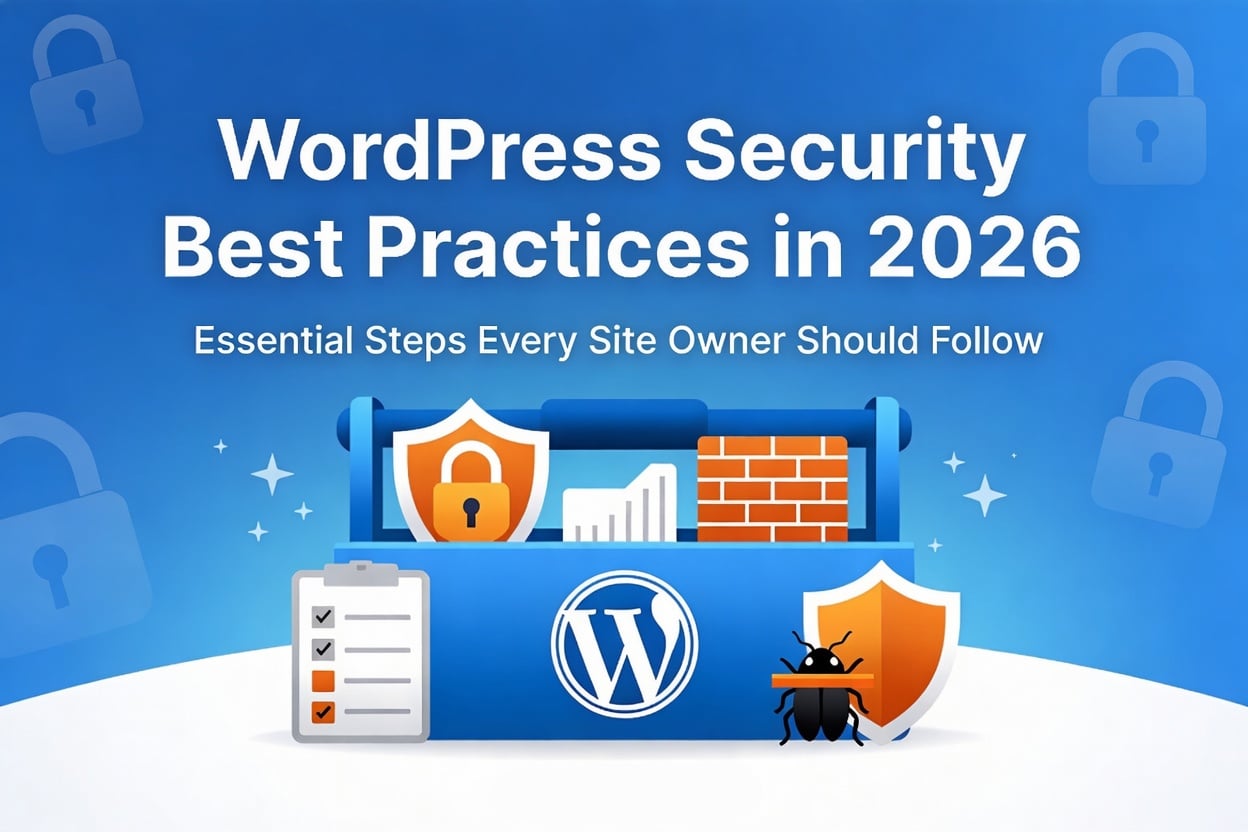
In this guide, we’ll walk you through everything you need to know about WordPress security in 2026—from the basics that every site owner should implement to advanced measures that give you extra peace of mind. Whether you’re running a small blog or a business website, these WordPress security best practices will help you sleep better at night.
Why WordPress Security Matters in 2026
Let’s start with some sobering facts:
- Over 43% of all websites use WordPress (2026 data), making it the #1 CMS target for hackers
- WordPress sites are attacked every 39 seconds on average
- Outdated plugins are responsible for 56% of WordPress security breaches in 2025-2026
- 43% of small businesses have experienced a cyberattack in the past year
But here’s what matters: most WordPress hacks are preventable with basic security practices.
The cyber landscape has changed since last year. We’re now seeing more sophisticated attacks, including:
- Plugin supply chain attacks (hackers compromising popular plugins to spread malware)
- AI-driven brute force attacks (automated systems trying millions of password combinations)
- Phishing campaigns targeting WordPress admins with fake update notifications and plugin offers
- Zero-day vulnerabilities being exploited faster than patches are released
The good news? You can protect yourself against all of these.
The Basics: Essential WordPress Security Steps
Think of these as your security foundation. Do these first. They’re simple, but they’re also the most effective.
1. Keep Everything Updated (This Is Critical)
Outdated WordPress cores, themes, and plugins are like leaving your front door unlocked. Hackers actively scan for known vulnerabilities they can exploit.
What to do:
- Update WordPress core immediately when updates are available
- Update all your plugins and themes as soon as patches drop
- Remove and delete any plugins or themes you’re not actively using
- Enable automatic updates for WordPress core (go to Dashboard → Settings → Updates)
Why it works: Updates patch security holes that hackers know about. If you delay updates by even a few days, you’re at risk.
2. Use Strong Passwords and Passkeys
Weak passwords are still the #1 entry point for attackers. An AI-powered brute force attack can crack an average password in minutes.
What to do:
- Create passwords with at least 16 characters (yes, really)
- Use a mix of uppercase, lowercase, numbers, and symbols
- Use a password manager like 1Password, Bitwarden, or LastPass to generate and store strong passwords
- Better yet: switch to passkeys for your WordPress admin account if your hosting supports them
Passkeys (also called password less authentication) are password less login credentials that are nearly impossible to hack. They’re becoming the new standard in 2026.
3. Enable Two-Factor Authentication (2FA)
Two-factor authentication adds a second verification step beyond your password. Even if someone steals your password, they can’t log in without the second factor.
What to do:
- Install a WordPress security plugin with 2FA support (we’ll recommend some below)
- Enable 2FA for your WordPress admin account
- Use an authenticator app like Google Authenticator, Authy, or Microsoft Authenticator (more secure than SMS)
- Require 2FA for all admin users on your site
Real example: Maria runs an e-commerce site. After enabling 2FA on her admin account, a hacker obtained her password through a phishing email. But they couldn’t log in without the authenticator code. Crisis averted.
4. Set Up Regular Backups
Backups are your insurance policy. If your site gets hacked or corrupted, a good backup means you’re back online in hours, not days.
What to do:
- Use a backup plugin like UpdraftPlus, Jetpack Backup, or BackWPup
- Schedule daily backups (at minimum, especially for business sites)
- Store backups in multiple locations (cloud storage like Google Drive, AWS S3, or Dropbox)
- Test your backups by restoring one to a staging site—don’t assume they work
Pro tip: A backup is only useful if you can restore it. Many site owners discover too late that their backups are corrupted.
Intermediate Steps: Level Up Your WordPress Security
Ready to go beyond the basics? These measures significantly reduce your risk.
5. Choose Security-Hardened WordPress Plugins
A WordPress security plugin acts as a gatekeeper for your site. The best ones monitor for threats, limit login attempts, and scan for vulnerabilities.
Top WordPress security plugins for 2026:
- Wordfence – Includes a Web Application Firewall (WAF), malware scanner, and login securityz
- Sucuri Security – Great for scanning, monitoring, and incident response
- iThemes Security – User-friendly with reputation monitoring and backup integration
- WP Activity Log – Tracks every change on your site (invaluable for audits)
What to look for:
- IP-based login restrictions
- Malware scanning and removal
- Login attempt limits
- Two-factor authentication support
- Activity logging
6. Implement SSL/TLS Encryption
SSL is the “S” in “HTTPS.” It encrypts data between your site and your visitors’ browsers, protecting everything from passwords to payment information.
What to do:
- Ensure your hosting provider has installed an SSL certificate (most do for free now)
- Force HTTPS on your entire site (Dashboard → Settings → General)
- Update all internal links to use HTTPS
- Test your SSL with SSL Labs (free tool)
Who needs this: Everyone. Google ranks HTTPS sites higher in search results, and visitors trust sites with the green padlock.
7. Limit Login Attempts
Brute force attacks use automated tools to try millions of password combinations. Limiting login attempts stops this cold.
What to do:
- Use a plugin like Wordfence or Limit Login Attempts Reloaded to cap login tries
- Set a limit of 5 failed attempts per IP address
- Lock out the attacker’s IP for 15-30 minutes after hitting the limit
- Whitelist trusted IP addresses (like your office or home)
Advanced Measures: Enterprise-Grade Security
If you run a business-critical site, consider these advanced protections.
8. Deploy a Web Application Firewall (WAF)
A WAF sits between your visitors and your server, filtering out malicious traffic before it reaches your site.
WAF options:
- Wordfence Premium WAF – WordPress-specific and very effective
- Cloudflare – Free tier protects against DDoS and common attacks
- Sucuri WAF – Strong reputation monitoring and malware cleanup
A WAF can prevent:
- SQL injection attacks
- Cross-site scripting (XSS)
- DDoS attacks
- Zero-day exploits
9. Harden Your Server Settings
This is for the technically inclined (or your hosting provider can help):
- Disable XML-RPC if you don’t use it (reduces attack surface)
- Restrict access to sensitive files (wp-config.php, .htaccess)
- Use strong database prefixes (change from “wp_” to something random)
- Enable security headers (Content Security Policy, X-Frame-Options)
- Disable file editing in WordPress (Dashboard → Settings → Disable File Editor)
Emerging Threats in 2026: What to Watch Out for Plugin Supply Chain Attacks
Hackers are increasingly targeting popular plugins to distribute malware to thousands of sites at once.
How to protect yourself:
- Only install plugins from the official WordPress.org repository
- Check plugin reviews and last update date before installing
- Immediately uninstall outdated or abandoned plugins
- Keep a list of which plugins you actually need (many sites have bloat)
AI-Driven Brute Force Attacks
AI can now predict common password patterns and crack them faster than ever.
How to protect yourself:
- Switch from passwords to passkeys when possible
- Require 2FA for all admin accounts
- Use a password manager to generate truly random passwords
- Limit login attempts aggressively
Phishing Campaigns Targeting WordPress Admins
Hackers send fake emails claiming to be plugin updates or hosting notifications, trying to trick you into revealing credentials.
How to protect yourself:
- Verify before clicking – Check sender email addresses carefully
- Go directly to the source – Don’t click links in emails; visit websites directly
- Your host doesn’t ask for passwords via email – If they do, it’s a phishing attempt
- Enable login notifications – Set up email alerts when someone logs into your account
Your WordPress Security Checklist
To make this easy, here’s your quick reference:
This Week:
- Update WordPress, all plugins, and all themes
- Change admin username if it’s still “admin”
- Enable 2FA on your admin account
- Set up a daily backup schedule
This Month:
- Install a WordPress security plugin (Wordfence or Sucuri)
- Enable HTTPS and force it site-wide
- Set up login attempt limiting
- Test your most recent backup
This Quarter:
- Audit all installed plugins and remove unused ones
- Switch to passkey authentication
- Implement a WAF (at minimum, use Cloudflare Free)
- Set up activity logging to track all site changes
The Bottom Line: You’re in Control
WordPress security can feel overwhelming, but the reality is simple: most attacks target the low-hanging fruit sites with outdated software, weak passwords, and no monitoring.
If you implement just the basics covered in this guide, you’ll be more secure than 80% of WordPress sites out there.
Start today. Pick one thing from the checklist and do it right now. Tomorrow, do the next one. In two weeks, you’ll have a significantly more secure WordPress site.
Your WordPress site is too important to leave to chance.
Get Your Free WordPress Security Checklist
We’ve put together a comprehensive, downloadable checklist with step-by-step instructions for all the security measures in this guide.
Download Your Free WordPress Security Checklist
Just enter your email and we’ll send it to you immediately. You’ll also get our weekly WordPress security tips delivered to your inbox.
Questions? We’re Here to Help
Have questions about WordPress security? Drop a comment below or Contact WP Secure Stack. We’re here to help you keep your site safe.
Remember: Security isn’t a one-time project- it’s an ongoing practice. But when you have the right tools and knowledge, it becomes second nature.
Stay secure! 🔒



Leave a Reply