Your WordPress website holds valuable business data, customer information, and search engine rankings. Hackers know this. They often target WordPress plugins and themes because these tools give them direct access to your website files.
Many website owners install unsafe plugins without realizing the risk. A single malicious plugin can steal data, redirect visitors, damage SEO rankings, or completely destroy your website.
In this guide, you will learn how to detect malicious WordPress plugins and themes before they damage your site.
Why Hackers Target WordPress Plugins and Themes
WordPress powers millions of websites. Plugins and themes extend website functionality, but they also create security risks.
Hackers hide malware inside plugins and themes to:
- Steal admin access
- Inject spam links
- Redirect visitors
- Send phishing emails
- Mine cryptocurrency
- Infect website files
- Create hidden backdoors
Some malicious scripts stay inactive for weeks. Others only activate when search engine bots visit your website. This behavior makes malware difficult to detect.
The Biggest Warning Sign: Nulled WordPress Plugins and Themes
The fastest way to infect a WordPress site involves installing nulled plugins or themes.
Nulled software refers to premium WordPress products that third-party websites offer for free.
Why Nulled Themes and Plugins Are Dangerous
The offer sounds attractive:
- You save money
- You get premium features
- You skip license fees
But hackers use nulled software to inject malware into websites.
Most nulled plugins contain hidden backdoors that give attackers full control of your website immediately after installation.
These backdoors allow hackers to:
- Create hidden admin accounts
- Upload malicious files
- Steal customer information
- Inject SEO spam
- Redirect traffic
If you want a secure WordPress website, avoid nulled themes and plugins completely.
Check Plugin Update History Before Installation
Outdated plugins create major WordPress security risks.
Developers regularly release updates to fix vulnerabilities, improve compa, and patch security holes. When developers abandon a plugin, hackers quickly exploit its weaknesses.
Before installing any WordPress plugin or theme, check these details carefully:
1. Last Updated Date
Avoid plugins that developers have not updated in more than two years.
Old plugins often contain known vulnerabilities.
2. WordPress Compatibility
Make sure the plugin supports the latest WordPress version.
Incompatible plugins can break your website or expose security flaws.
3. Support Activity
Check whether developers actively answer support requests.
Inactive support usually signals an abandoned plugin.
4. User Reviews and Ratings
Read recent reviews carefully.
Warning signs include reviews mentioning:
- Malware
- Spam redirects
- SEO hacks
- Hidden links
- Suspicious behavior
Common Signs of a Malicious WordPress Plugin or Theme
Malware often hides quietly inside WordPress files. You need to watch for unusual behavior and suspicious file activity.
Strange File Names
Hackers often hide malicious files inside folders that website owners rarely inspect.
Common hiding locations include:
- /wp-content/uploads/
- /wp-includes/
- /wp-admin/
Watch for suspicious filenames like:
- xhsy12.php
- wp-vcd.php
- class.theme.php
- wp-themas.php
Hackers often use names that look similar to legitimate WordPress files.
Obfuscated or Encoded Code
Malicious plugins often contain obfuscated code.
This code looks like random letters, symbols, and numbers designed to hide dangerous functions.
One common example involves Base64 encoding.
You may see suspicious code like this:
eval(base64_decode(‘random_code_here’));
Hackers use this technique to hide malware from website owners.
If you notice heavily encoded code inside a plugin or theme, investigate immediately.
Sudden Spikes in CPU or RAM Usage
Malware consumes server resources.
A malicious plugin may secretly:
- Send spam emails
- Run crypto mining scripts
- Launch attacks on other websites
- Generate fake traffic
Check your hosting dashboard regularly.
Unexpected spikes in CPU usage, memory usage, or bandwidth often indicate malware activity.
Unexpected Website Behavior
Malicious WordPress themes and plugins often cause unusual website behavior.
Watch for these warning signs:
- Random redirects
- Slow website speed
- Pop-up spam
- Unknown admin users
- Google security warnings
- Blacklisting by search engines
- New links appearing on pages
- Hosting suspension notices
Never ignore these symptoms.
How to Scan WordPress for Malware
You do not need advanced coding skills to detect malware in WordPress. Use multiple layers of security protection such as;
Use Online Malware Scanners
Online scanners quickly check your website for visible malware and blacklisting issues.
These tools detect:
- Suspicious redirects
- SEO spam
- Malware signatures
- Blacklisting status
Popular malware scanners include:
- Sucuri SiteCheck
- VirusTotal
- Quttera
These tools provide a fast external security scan
Install a WordPress Security Plugin
A good security plugin helps detect infected files automatically.
Popular WordPress security plugins include:
These plugins can:
- Scan WordPress files
- Detect malware signatures
- Block suspicious traffic
- Monitor file changes
- Protect login pages
Regular scans improve website security significantly.
Run a WordPress Checksum Verification
Advanced users can run checksum verification using WP-CLI.
This process compares your WordPress core files against official WordPress repository files.
If hackers modify even one line of code, checksum verification detects the change.
This method helps identify hidden malware quickly.
Best Practices to Prevent WordPress Malware
Prevention always costs less than recovery.
Follow these WordPress security best practices:
Download Plugins from Trusted Sources
Only use:
- WordPress.org repository
- Official developer websites
- Trusted marketplaces
Avoid unknown download websites completely.
Keep Everything Updated
Update regularly:
- WordPress core
- Plugins
- Themes
Security updates close vulnerabilities before hackers exploit them.
Remove Unused Plugins and Themes
Unused plugins increase security risks. Delete feature you no longer use.
Use Strong Login Security
Protect admin accounts with:
- Strong passwords
- Two-factor authentication
- Login protection plugins
Backup Your Website Regularly
Backups help you recover quickly after an attack. Store backups in secure offsite locations such as google drive.
Final Thoughts
WordPress security requires constant attention.
Hackers actively search for vulnerable plugins and themes every day. A single malicious file can damage your SEO rankings, steal sensitive data, and destroy customer trust.
You can reduce these risks by:
- Avoiding nulled plugins
- Installing trusted themes
- Monitoring file activity
- Running regular malware scans
- Keeping WordPress updated
Always treat free premium plugins with suspicion.
If a premium WordPress theme appears free on an unknown website, the real product may actually be your website data.
Protect your WordPress stack before hackers find a way inside.
We hope this guide helped you learn how to How to Detect Malicious Plugins and Themes your website. Explore more on tips and guides on secure website, you may also find these guides helpful:
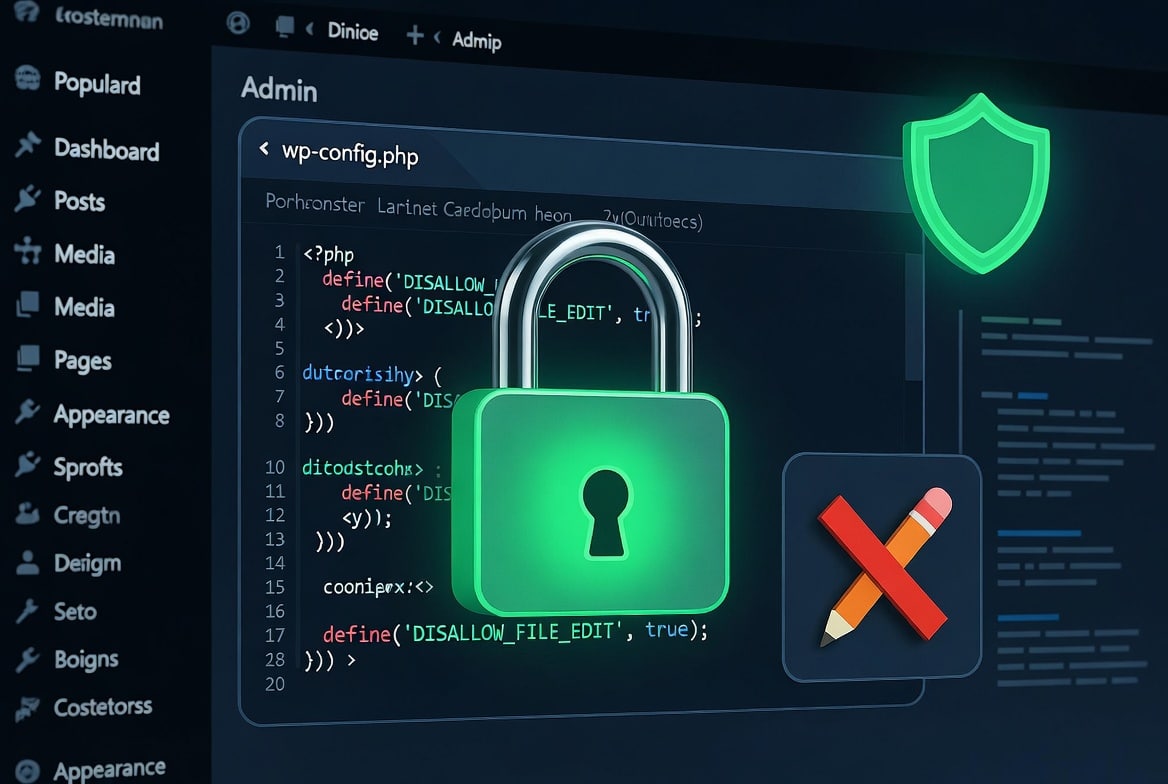
- How to Disable File Editing in WordPress via wp config.php
- WordPress 7.0 Security Features: What’s New, What Got Fixed, and What Got Cut
If you liked this guide, please subscribe to our newsletter for WordPress security tutorials and guidelines. You can also find us on Linkedin and Facebook.



Leave a Reply