
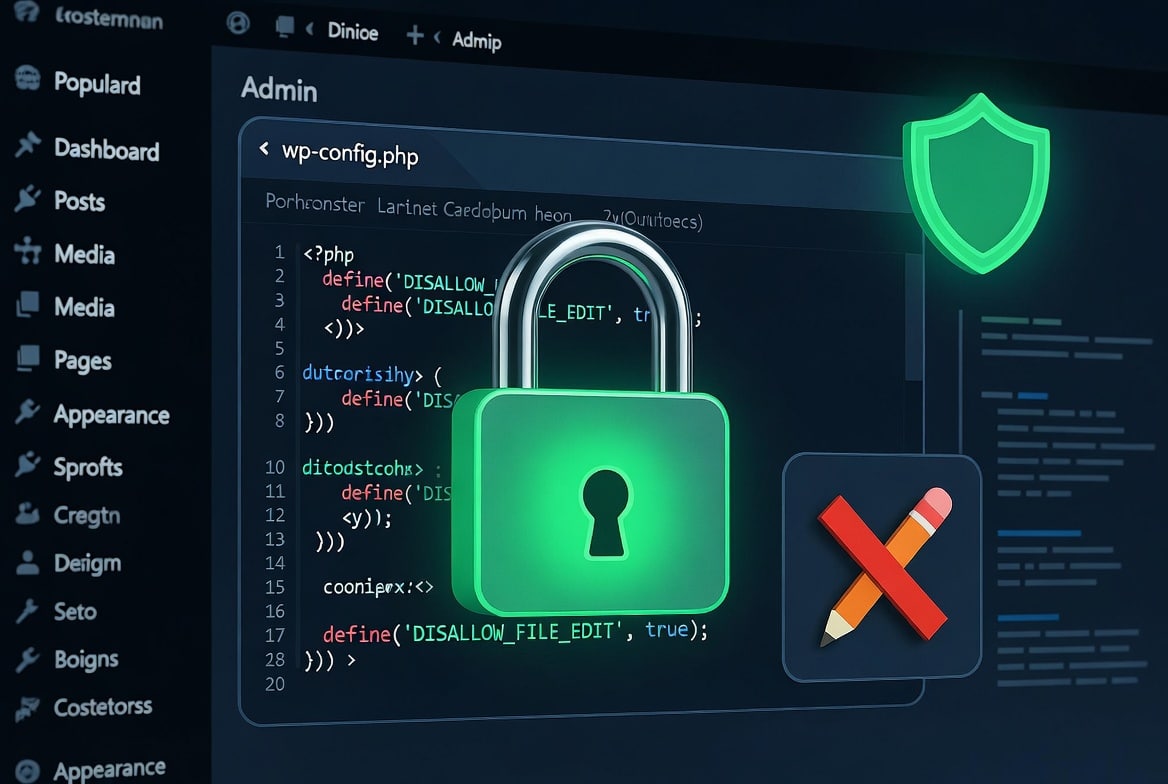
WordPress includes a built-in code editor that lets anyone with admin access modify plugin and theme PHP files directly from the browser. One compromised admin account gives an attacker full code execution on your server — no FTP, no SSH required. A single line in wp-config.php disables that editor permanently. This post explains what to add, where to add it, the difference between the two available constants, and how to verify the change worked.
Why the WordPress File Editor Is a Security Risk
The Theme File Editor and Plugin File Editor live under Appearance → Theme File Editor and Plugins → Plugin File Editor in wp-admin. They exist for quick edits — a developer adjusting a template, a site owner tweaking a function. In practice, they’re a direct path from a compromised admin password to arbitrary PHP execution on your server.
The attack chain is short. An attacker gains admin credentials through a phishing email, a brute-force attack, or a credential stuffing attempt using a password leaked in an unrelated breach. They log into wp-admin. They open the Plugin File Editor. They paste a PHP web shell into any active plugin file. They save. Your server now executes any command they send.
Two-factor authentication on the admin account prevents this. Disabling the file editor prevents it regardless of whether 2FA is configured — it removes the capability entirely, so a compromised account has one fewer path to code execution.
WordPress itself flags this in its Hardening WordPress documentation: if you don’t need the editor, disabling it reduces your attack surface.
The One-Line Fix: DISALLOW_FILE_EDIT
Open wp-config.php in a text editor or via SSH. Add this line directly above the line that reads /* That's all, stop editing! Happy publishing. */:
php
define( 'DISALLOW_FILE_EDIT', true );That’s the complete change. Save the file. The Theme File Editor and Plugin File Editor disappear from the wp-admin menu immediately — no cache to clear, no plugin to activate.
Where wp-config.php Lives
On most installations, wp-config.php sits in the WordPress root directory — the same folder as wp-login.php and wp-includes/. If you moved wp-config.php one level above the web root (a hardening measure covered separately), it’s there instead.
Access it via:
SSH:
bash
nano /var/www/html/wp-config.phpFTP/SFTP: Connect with FileZilla or your client of choice, navigate to the WordPress root, right-click wp-config.php, and open it in your local editor.
cPanel File Manager: Navigate to public_html (or your site’s document root), locate wp-config.php, right-click, and select Edit.
The Stronger Option: DISALLOW_FILE_MODS
DISALLOW_FILE_EDIT removes the code editors. DISALLOW_FILE_MODS goes further — it disables file editing and blocks plugin and theme installation, deletion, and updates from within wp-admin.
php
define( 'DISALLOW_FILE_MODS', true );When DISALLOW_FILE_MODS is set to true, DISALLOW_FILE_EDIT is automatically enforced as well. You don’t need both constants. Setting DISALLOW_FILE_MODS alone covers everything DISALLOW_FILE_EDIT covers, plus installation and update controls.
Which One Should You Use?
Use DISALLOW_FILE_EDIT if:
- You still want to install and update plugins and themes from wp-admin.
- You want to keep WordPress automatic background updates running.
- You manage the site yourself and update plugins regularly through the dashboard.
Use DISALLOW_FILE_MODS if:
- The site is in production and changes to plugins or themes go through a staging-to-live deployment process.
- You want to prevent a compromised admin account from installing new plugins entirely.
- Updates are handled via WP-CLI, a managed hosting dashboard, or a deployment pipeline rather than wp-admin.
The tradeoff with DISALLOW_FILE_MODS is that it also blocks WordPress core’s automatic background updates. If you set it, you take on full responsibility for keeping WordPress, plugins, and themes updated through another method. For sites under active development or without a controlled deployment process, DISALLOW_FILE_EDIT is the safer starting point.
What wp-config.php Looks Like After the Change
Before:
php
/** Sets up WordPress vars and included files. */
require_once ABSPATH . 'wp-settings.php';
After:
php
define( 'DISALLOW_FILE_EDIT', true );

/** Sets up WordPress vars and included files. */
require_once ABSPATH . 'wp-settings.php';
Placement matters only in that the constant must be defined before WordPress bootstraps. Directly above the /* That's all, stop editing! */ comment is the conventional location — it keeps all custom configuration in the same section and avoids accidental placement after wp-settings.php is loaded.
Verifying the Change Worked
Log into wp-admin after saving wp-config.php. Check the Appearance menu — Theme File Editor should be gone. Check the Plugins menu — Plugin File Editor should be gone.
If either editor still appears, the constant wasn’t saved correctly. Re-open wp-config.php and confirm the line is present and not commented out (no // at the start).
To verify via WP-CLI:
bash
wp config get DISALLOW_FILE_EDITThe output should read true. If the command returns an error saying the constant isn’t defined, the change hasn’t taken effect.
Effect on Multisite Installations
On a WordPress Multisite network, DISALLOW_FILE_EDIT and DISALLOW_FILE_MODS apply network-wide when added to the root wp-config.php. All sites on the network lose file editor access simultaneously. Super admins are not exempt — the constants override all role permissions.
If you manage a network where some sites need editor access and others don’t, the constant is not the right tool. Capability-based restrictions via code or a plugin give per-site control. For most networks where the goal is security hardening, the network-wide constant is the correct approach.
Managed Hosting: Already Done For You
Several managed WordPress hosts disable the file editor at the platform level regardless of wp-config.php settings:
- WP Engine disables the file editor on all plans.
- Kinsta disables it by default.
- Pressable removes it platform-wide.
If you’re on a managed host and the editor is already absent from your wp-admin menus, the constant is already effectively set — either through your host’s configuration or a server-level restriction. Adding the constant yourself is still valid; it won’t conflict, and it ensures the restriction persists even if you migrate to a different host.
How to Temporarily Re-enable the Editor
If you need to make a direct code edit and your deployment process isn’t available — an emergency template fix at 2am, for example — you can temporarily re-enable the editor by setting the constant to false:
php
define( 'DISALLOW_FILE_EDIT', false );Make the edit you need in wp-admin, then immediately set it back to true and save wp-config.php again.
A cleaner alternative is editing files directly via SSH or SFTP, which bypasses the need to toggle the constant. The editor in wp-admin provides no capability that a text editor over SSH doesn’t provide — and direct file access gives you syntax highlighting, version control, and an undo history that the wp-admin editor lacks.
Other wp-config.php Hardening Constants Worth Adding at the Same Time
While you have wp-config.php open, these constants address related risks and belong in every production site’s configuration:
Disable plugin and theme installs (if you want the full lockdown):
php
define( 'DISALLOW_FILE_MODS', true );Force SSL for wp-admin and login:
php
define( 'FORCE_SSL_ADMIN', true );Limit post revisions (reduces database size, minor performance benefit):
php
define( 'WP_POST_REVISIONS', 5 );Disable the WordPress debug log in production (prevents error messages from leaking path information):
php
define( 'WP_DEBUG', false );
define( 'WP_DEBUG_LOG', false );
define( 'WP_DEBUG_DISPLAY', false );
Set the WordPress address and site URL explicitly (prevents these from being changed through wp-admin, which some attacks attempt):
php
define( 'WP_HOME', 'https://yourdomain.com' );
define( 'WP_SITEURL', 'https://yourdomain.com' );
Rotate your secret keys and salts if you haven’t recently. Generate a fresh set at https://api.wordpress.org/secret-key/1.1/salt/ and replace the placeholder block in wp-config.php. These keys sign authentication cookies — old or default keys let attackers forge sessions.
Frequently Asked Questions
Does disabling the file editor affect plugin and theme functionality? No. The constant removes the editor interface from wp-admin. Plugins and themes continue loading and executing normally. Only the ability to edit their code through the browser is removed.
Does DISALLOW_FILE_EDIT prevent file uploads? No. It disables the code editors for PHP files under Appearance and Plugins. The Media Library uploader is unaffected. If you want to block PHP execution in uploaded files, that requires a server-level rule in Nginx or Apache — a separate hardening step covered in the full WordPress security hardening guide.
What happens if I set DISALLOW_FILE_MODS and a critical security update releases? WordPress automatic background updates for security releases are blocked when DISALLOW_FILE_MODS is true. You’ll need to apply the update manually via WP-CLI (wp core update), your host’s dashboard, or SFTP. Subscribe to WordPress security announcements — either through the official WordPress Security category on WordPress.org or through Wordfence/Patchstack email alerts — so you’re notified of critical releases promptly.
Can I add DISALLOW_FILE_EDIT from inside wp-admin? No. wp-config.php is not accessible or editable through wp-admin by design. The change requires direct file access via SSH, SFTP, or your host’s file manager.
Does this protect against all code injection attacks? No. It removes one specific attack vector — an authenticated attacker using wp-admin’s built-in editor to inject code. Attackers can still modify plugin and theme files directly if they gain server-level access through a file upload vulnerability, a compromised FTP credential, or a server misconfiguration. File editor hardening is one layer of a defense-in-depth approach, not a complete solution.
The Complete Change
Add one or both of these lines to wp-config.php, above the /* That's all, stop editing! */ comment:
php
// Removes the Theme File Editor and Plugin File Editor from wp-admin
define( 'DISALLOW_FILE_EDIT', true );

// Also blocks plugin/theme installation and updates from wp-admin (optional, stronger)
// define( 'DISALLOW_FILE_MODS', true );
Save the file. Verify the editor menus are gone from wp-admin. The change takes effect immediately, survives WordPress updates, and requires no plugin to maintain.




Leave a Reply